
Documentation
User manual
The Rallypac revives the idea of the original Rally-Pac — clock and tachometer on the steering column — and brings it into the electronic age: two round screens, GPS-measured speed, your Android notifications and, on the RallypacMOD+, performance timers, danger-zone detection and a fuel station finder. This manual guides you from fitting to the very last screen.
Other languages: Français Deutsch Español Italiano Português Nederlands
- The Rallypac broadcasts its own Wi-Fi network RallyPac (password rallypac): that is how you set it up, from your phone's browser.
- A long press (1 second) on the button switches from Wi-Fi to Bluetooth and back.
- Notifications, navigation and data updates go through the Android app RallyPac Compagnon, over Bluetooth.
Your Rallypac
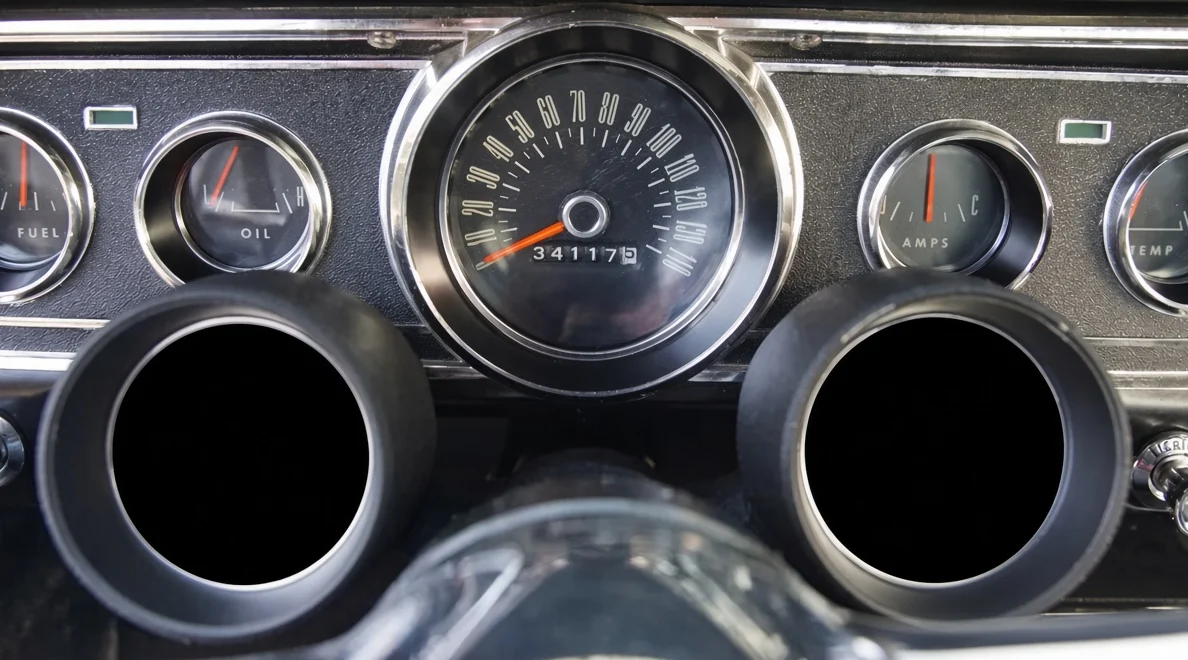
Two screens, your choice
Each round screen (2.1 inches, 360 × 360 pixels) shows whatever you like: tachometer, speedometer, clock, large digital speed, trip computer, timers or fuel station. Both screens are interchangeable.
Plug & play
Like the period Rally-Pac, it mounts on the column and connects without cutting any wire or modifying any original part.
Set up from your phone
No app needed for settings: the unit broadcasts its Wi-Fi and its settings page opens in your browser.
Linked to your Android
With the RallyPac Compagnon app, calls, messages and Google Maps or Waze directions appear on the screens.
RallypacMOD or RallypacMOD+?
| Feature | RallypacMOD | RallypacMOD+ |
|---|---|---|
| 2 round screens, clock, tachometer, GPS speedometer | ✓ | ✓ |
| Trip computer (trip, battery, service) | ✓ | ✓ |
| Calls, messages, Google Maps / Waze guidance (Android) | ✓ | ✓ |
| Wi-Fi settings page, 10 languages, km/h or mph | ✓ | ✓ |
| Timers (0-100 km/h, 400 m, 80-120 rolling) | — | ✓ |
| Offline danger-zone detection | — | ✓ |
| Nearest fuel station | — | ✓ |
| 4G module: GPS anti-theft, geofencing, SMS alerts (SIM card not included) | — | ✓ |
A RallypacMOD cannot be upgraded to a RallypacMOD+ later.
What you need to know
Compatibility
The Rallypac mounts on the steering column of cars that received the original Rally-Pac (1964½–1966 Mustang, 1964 Falcon and Fairlane) and of Fords and Mercurys of the same era that share this column.
Floor shift only: columns with a column-mounted gear lever and aftermarket tilt columns are not suitable. If in doubt, send us a photo of your column before fitting.
Tools
- Screwdriver and wrench suited to the mounting clamp.
- A voltmeter (recommended) to find the switched +12 V.
- A phone: Android for notifications and navigation, any phone for the settings.
- Switch off the ignition and disconnect the battery's negative terminal before any wiring.
- Route the wires away from moving parts (steering, pedals) and heat sources.
- Never adjust the Rallypac while driving: stop first.
- The information displayed is an aid: always obey road signs and speed limits.
Fitting on the column
The Rallypac takes the place of the original Rally-Pac: it is fitted on the column, just behind the steering wheel.
- Find the location. The unit sits on top of the column, screens facing the driver, without blocking the instrument cluster.
- Open the clamp and fit it around the column. If your car had a Rally-Pac, use exactly the same position.
- Offer up the unit and tighten lightly: check that the wheel turns freely from lock to lock and that the indicators cancel normally.
- Angle the screens towards your eyes in the driving position, then tighten fully without crushing the column.
- Run the cable down the column to beneath the dashboard and secure it with cable ties.
Wiring
Three connections are enough: a supply that comes on with the ignition, a ground and the tachometer signal. Everything else — GPS, Wi-Fi, Bluetooth and, on the RallypacMOD+, 4G — is built into the unit.
- With the battery disconnected, find a fused switched +12 V: present with the ignition on and absent with it off (check with a voltmeter). The Rallypac then turns on and off with the car.
- Connect the ground to a clean metal point on the body, or to the original dashboard ground.
- Connect the tachometer signal to the coil's "–" terminal (the wire going to the points or the electronic ignition). With an electronic ignition, use its dedicated "tach" output.
- Reconnect the battery and switch on the ignition: the Rallypac starts (chapter 5).
First start
- Switch on the ignition. The screens show the start-up logos for a few seconds, then the gauges fade in.
- Let the GPS find its position. The first time, allow a few minutes with the car outdoors under open sky; after that, a few seconds are enough. Until the GPS has a fix, the speedometer stays at zero.
- The time sets itself from the GPS: nothing to do.
- Set your mileage so the odometer matches the car (chapter 8, "Odometer").


The button: Wi-Fi or Bluetooth
To keep all its memory for the screens, the Rallypac uses only one radio at a time: Wi-Fi for settings, or Bluetooth for the Android app.
| I want to… | I… |
|---|---|
| Set up the Rallypac from my phone | Switch on the ignition (Wi-Fi stays on for 10 minutes), or long-press to turn Wi-Fi back on. |
| Receive calls, messages and navigation | Wait for the 10 minutes to end, or long-press to switch to Bluetooth, then open the RallyPac Compagnon app. |
| Know which mode I am in | Display the "GPS and Wi-Fi info" screen: it shows the active Wi-Fi (name and password) or the Bluetooth link status. |
Opening the settings page
Nothing to install: the Rallypac has its own web page. Your phone connects to it like any Wi-Fi network.
- With the ignition on and the car stopped, open your phone's Wi-Fi settings.
- Choose the RallyPac network and enter the password rallypac.
- The settings page opens by itself. If not, open the browser and type http://192.168.4.1.
- Change what you want, then press Save in that section: the screens change straight away.
Every setting, one by one
Screenshots of the unit's settings page, as it appears on a phone.

Screens
Choose what the left screen and the right screen show: tachometer, speedometer, clock, large digital speed, trip computer, timers or fuel station. Press Save.
The Timers and Fuel station screens are for the RallypacMOD+.
Language and units
Screen language: French, English, German, Spanish, Italian, Portuguese, Dutch, Swedish, Polish or Czech.
Units: metric (km/h, km) or imperial (mph, miles). When you switch, the odometer and trip are converted and the speedometer scale adapts.
Tachometer
End of scale: 6,000, 7,000 or 8,000 rpm to suit your engine. Press Change scale: the dial is redrawn.
Start of the red zone: from 2,000 rpm to the end of the scale. A red band appears on the dial; the shift light uses it (see "Driving").
Speedometer
End of scale: 160, 200 or 240 km/h (100, 120, 140 or 160 mph in imperial units).
Odometer
Enter the car's current mileage (up to 999,999.9) then Save mileage. The odometer then counts on from there, using GPS.
Trip
Reset trip clears the trip meter and the trip computer statistics (max speed, average, time, distance).
Driving
Speed threshold: from 30 to 400 (0 to turn off). Above it, the speedometer enters its red band and the large digits turn red.
Shift light: when on, the screens flash as soon as the revs reach the red zone, telling you to change up.
Brightness
Automatic (day/night): the Rallypac works out sunrise and sunset from the GPS position and time, and smoothly switches from the "day" level to the "night" level. No sensor needed.
Fixed: the screens stay at the "day" level.
Levels range from 10 to 255 (255 = maximum brightness).
Service and battery
Service interval: the distance between two services (10,000 km by default, 0 to turn off). The page shows the distance remaining; the trip computer shows it too.
After the service, press Service done: the count restarts for a full interval.
Divider ratio: calibrates the battery voltage shown. It is set at the factory; only change it if the voltage shown differs from your voltmeter:
new ratio = current ratio × actual voltage ÷ displayed voltage
Clear timer records resets the best times (RallypacMOD+).
Danger zones RallypacMOD+
The unit comes with the European danger-zone database built in: detection works offline, with no network.
This section shows the number of zones and the countries installed. The database updates automatically through the RallyPac Compagnon app (chapter 9).
Alert distance: from 100 to 1,000 m. Test an alert shows a test alert on both screens.
"Advanced mode" also lets you download a country from this page, without the app.
The RallyPac Compagnon app
The app links your Android phone and the Rallypac over Bluetooth: calls, messages, Google Maps and Waze directions, danger-zone and fuel station updates.
Installation and pairing
- Install the RallyPac Compagnon app on your Android phone.
- Open it and grant the permissions requested: Bluetooth and location (GPS). Without them, the app cannot reach the unit.
- Press Accès aux notifications… (notification access) and enable RallyPac in the list: this is what lets navigation, calls and messages be displayed.
- Put the Rallypac in Bluetooth mode (long press on the button, or 10 minutes after start-up), then press Démarrer la liaison (start link).
- The first time, Android asks to pair the unit: accept. The status changes to "Boîtier : connecté" (unit connected).
After that, the link reconnects by itself on every drive: the app runs in the background (a discreet notification shows it).
The app is currently available in French only; button names are given in French in this manual.
The app sections
| Section | What it is for |
|---|---|
| État (status) | Shows whether the unit is connected, notification access is granted and Bluetooth and GPS permissions are given. Démarrer la liaison and Arrêter start or stop the service. |
| Notifications | Choose whether to show messages (WhatsApp, SMS…) and their text. Without the text, the screen only shows the app and the sender. Navigation and calls always go through. |
| Radars (RallypacMOD+) | Each time the phone has Internet, the app checks the countries around you and sends only the changes to the unit. Vérifier tous les pays maintenant forces a full update. |
| Stations-service (RallypacMOD+) | The unit keeps the fuel stations within 150 km of you. The app reloads the area by itself when you move away; the button reloads it on demand (GPS position needed). |
| Essais (tests) | Sends the unit a dummy notification, navigation instruction or call, to check that everything is displayed. |
What each screen shows
The images in this chapter are the real Rallypac screens.
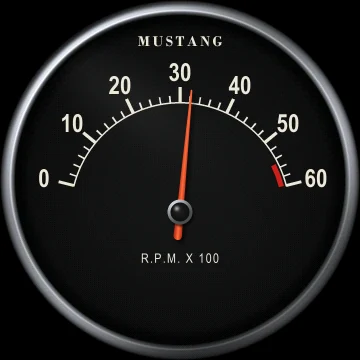
Tachometer
A spring-loaded needle, like a real instrument, graduated in hundreds of rpm (6,000, 7,000 or 8,000 rpm depending on the setting). The red zone is adjustable.
When the shift light is on, the screens flash in the red zone.
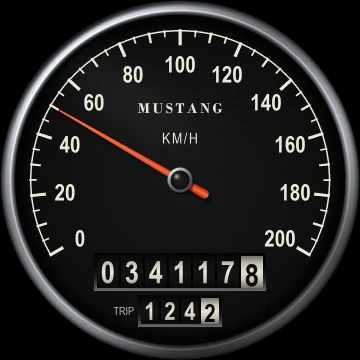
Speedometer
Speed measured by satellite: it depends neither on the speedometer cable nor on tire size. At the bottom, the odometer (with tenths) and the trip.
Scale 160, 200 or 240 km/h, or in mph. Red band from the speed threshold if set.
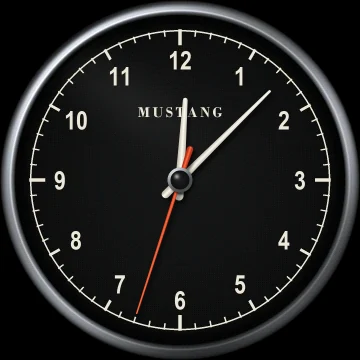
Clock
Analog clock with seconds hand, set automatically from the GPS.
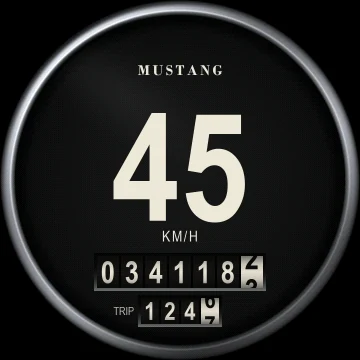
Large digital speed
Speed in figures, readable at a glance, with the odometer and trip. The digits turn red above the speed threshold.
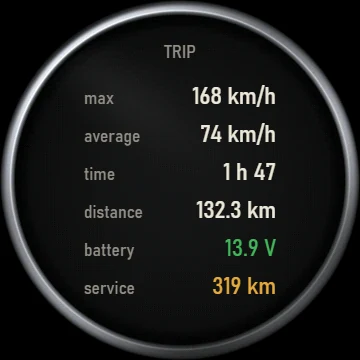
Trip computer
Since the last trip reset: max speed, average, driving time and distance. Below, the battery voltage and the distance to the next service.
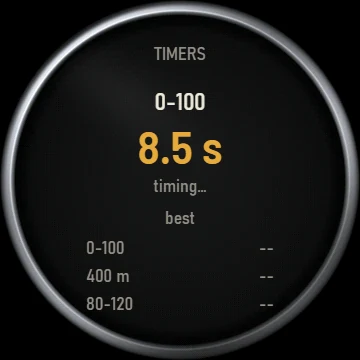
Timers RallypacMOD+
Come to a complete stop, then accelerate: the Rallypac times by itself, using GPS, the 0-100 km/h, the 400 m standing start and the 80-120 km/h rolling acceleration. Records are kept in memory.
If you lift off before the end, the current measurement is abandoned.
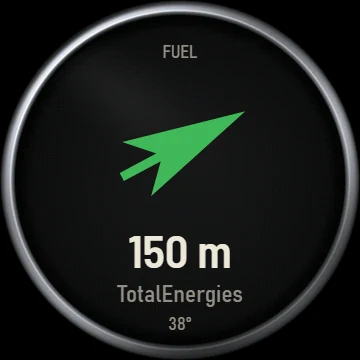
Fuel station RallypacMOD+
The arrow points to the nearest station, with its distance and brand. Stations are loaded by the app, within 150 km.
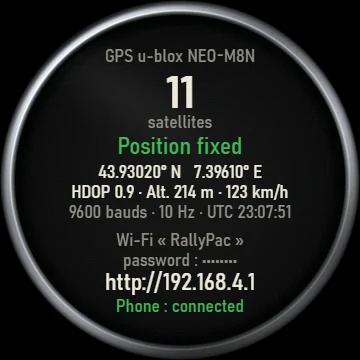
GPS and Wi-Fi info
Check screen: number of satellites, position, altitude, GPS time, then the active Wi-Fi with its password and the settings page address, and the status of the link with the phone.
Navigation, calls and alerts
This information pops up on the screens when it arrives, then each screen goes back to its display.
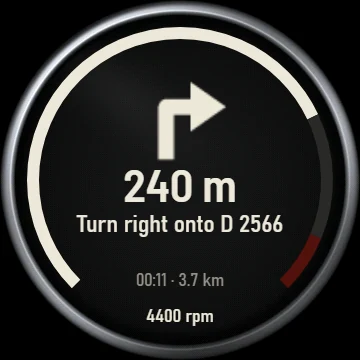
Google Maps / Waze navigation Android
The arrow of the next manoeuvre, the distance, the road name, then the arrival time and distance remaining. Navigation takes the place of the tachometer, whose revs stay visible as a bar around the edge. With no tachometer displayed, navigation is not shown.
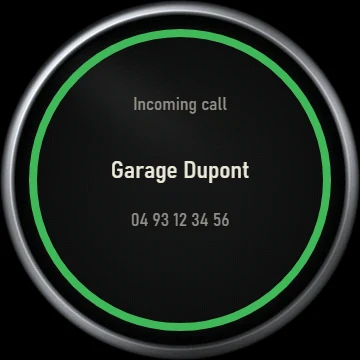
Incoming call Android
The caller's name and number appear on the speed screen (speedometer or large digits), surrounded by a ring while it rings. Answer with your phone or hands-free kit.
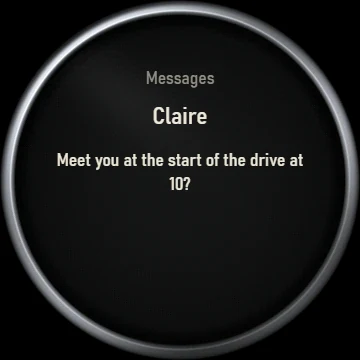
Messages Android
SMS, WhatsApp…: the sender and the text are shown for a few seconds on the speed screen. You choose in the app whether to show the text.
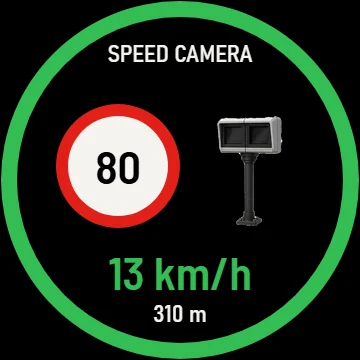
Danger zone RallypacMOD+
When approaching a zone, the alert appears on both screens: zone type, speed limit and distance. The circle is green if you are within the limit, flashing red otherwise.
4G features
The RallypacMOD+ has a built-in 4G module: it communicates on its own, even when your phone is not around.
SIM card
A SIM card (not included) from a mobile operator that allows sending SMS is required for the 4G features.
Troubleshooting
| What I see | What I do |
|---|---|
| The screens stay black | Check the switched +12 V (with a voltmeter, ignition on), the fuse and the ground. |
| The speedometer stays at zero | The GPS is looking for its position: take the car outside under open sky and wait a few minutes. The "GPS and Wi-Fi info" screen shows the number of satellites. |
| The tachometer does not move | Check the tachometer signal on the coil's "–" terminal (or the electronic ignition's "tach" output). The banner on the settings page shows the revs live. |
| The "RallyPac" Wi-Fi does not appear | The unit is probably in Bluetooth mode: long-press the button to turn Wi-Fi back on. |
| The phone says "incorrect password" | The password is rallypac, in lower case. Forget the network on the phone and reconnect; if needed, switch the ignition off and on again. |
| The settings page does not open | Type http://192.168.4.1 in the browser. Turn off mobile data if the phone leaves the "no Internet" Wi-Fi. |
| No notifications or navigation | In the app, check "notification access granted" and "unit connected". The unit must be in Bluetooth mode. Use the Essais (tests) section. |
| Navigation is not displayed | It replaces the tachometer: choose the tachometer on one of the two screens. |
| The screens are too bright at night | Set the brightness to Automatic and lower the "night" level. |
| The battery voltage looks wrong | Correct the divider ratio (chapter 8, "Service and battery"). |
| The odometer does not match the car | Enter the correct mileage in the "Odometer" section. |
Specifications and warranty
Specifications
| Screens | 2 round 2.1" screens, 360 × 360 pixels, adjustable brightness |
| Power supply | Switched 12 V |
| Tachometer signal | Coil ("–" terminal) or "tach" output, isolated input |
| Positioning | Built-in GPS |
| Connectivity | 2.4 GHz Wi-Fi (settings), Bluetooth Low Energy (app) |
| RallypacMOD+ | 4G/GSM module, SIM card not included |
| Screen languages | 10 languages |
| Units | km/h and km, or mph and miles |
| Housing | PETG, 30 colors, matte, satin or gloss finish |
Warranty
The Rallypac is guaranteed for 2 years from delivery, in addition to statutory warranties. The warranty does not cover damage caused by improper installation, modification of the product or abnormal use.
Care
Clean the screens with a soft, dry cloth, without abrasive products or solvents. Avoid leaving the car in full sun with the windows closed for long hours.
Recycling
At the end of its life, do not throw the Rallypac away with household waste: take it to a collection point for electrical and electronic equipment.
Contact
A question? Reply to your order confirmation e-mail, or track your parcel on the tracking page.
Ford, Mustang, the pony logo and Rally-Pac are trademarks or names belonging to Ford Motor Company. They are used only to identify compatible vehicles and the original accessory. Rallypac is an independent product for classic cars: it is not affiliated with, approved by or sponsored by Ford Motor Company.